
Rebooting Your Dedicated Server
Rebooting your server is a common task. You may have installed new software or made configuration changes that require a reboot to be applied. The best way to reboot your dedicated server is through the operating system. This allows the server to shutdown safely and start back up correctly. However, what do you do when the operating system is unresponsive? You can’t just walk over to the server and flip a switch, so how can you reboot it without remote access to the system? Fortunately, there are two easy ways to reboot your Liquid Web traditional, dedicated server.
Reboot Request
The simplest way to reboot your unresponsive dedicated server is to submit a reboot request in your Liquid Web account. The reboot button for dedicated servers looks just like the reboot button for cloud servers, but rather than triggering an API call to reboot the server, the link notifies our monitoring team that you would like your server rebooted.
- Login to your Liquid Web account.
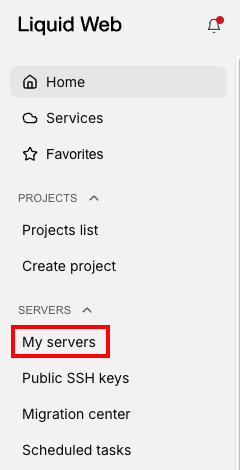
- Click on My Servers to the left of the screen.

- Click on the name of the server you want to reboot.
- Click Reboot to initiate a reboot request.
Reboot Via IPMI
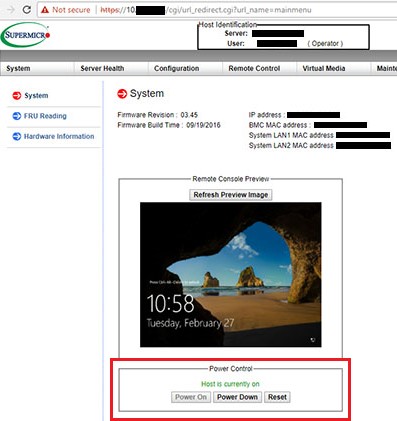
All of Liquid Web’s dedicated servers are IPMI capable. If IPMI is configured on your dedicated server, you can connect to Liquid Web’s network through a secure VPN connection, then check your server status and reboot if needed. For more information, see Setting Up Your Cloud VPN and Using IPMI Via VPN Access on Dedicated Servers.
Once you are connected to IPMI via your VPN connection, you can view your basic server information and Power On, Power Off, and Reset as needed.